 Add or Change a Timesheet Batch
 Add or Change a Timesheet Batch
On the left hand side of the timesheet entry screen, we have a list of all the payroll Batches which are available for inputting timesheet information. These Batches can be added to or changed using the Add, Change, or Delete buttons located below the Batch entry browse box.
In a Multiple Batch entry system, each person who is entering data is assigned their own file or Batch. Several users may then be allowed to enter the same type of data at the same time because they each have their own personal Batch file instead of sharing a common file. New Batches can be created and existing Batches changed or deleted from this window. This browse window shows existing Batches. To select a Batch, highlight the desired Batch. When a Batch is highlighted, the timesheets contained in that Batch are displayed in the browse window to the right.
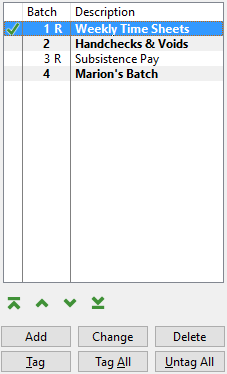
Add or Change (button)
To modify the information in the Batch, press the Add button or highlight the desired Batch and press the Change button. For more information, see Add or Change a Timesheet Batch.
Delete (button)
see Delete a Batch
Tag (button)
Press this button to select the highlighted Batch. For more information, see Tag a Batch.
Tag All (button)
Press this button to select all Batches in the browse window. For more information, see Tag a Batch.
Untag All (button)
Press this button to untag (unselect) all Batches in the browse window. For more information, see Tag a Batch.
Add or Change a Timesheet Batch
Click on the Add or Change button and the following screen comes into view.

Batch ID (Preferred Edition Only)
This is the number of the Batch. (In Small Builder and Standard editions this number will be grayed out and automatically assigned as number 1.) Assign the number of the Batch. Multiple Batch entry is available only in the Preferred Edition of the accounting system.
User ID
The User ID will default to the operator's personal user ID, but may be altered.
Enter up to 30 characters for a description of this Batch.
Select the Detail Type to be used by default when adding line items on a Timesheet. (Choose from Job, GL Account, and Equipment.)
Remember Job Number from Previous Timesheet (check box)
If this option is checked, each subsequent timesheet will automatically be charged to the same job and cost code as the previous timesheet unless the user changes the job or cost code manually.
Allow Entry of Overtime Hours in Weekly Timesheets (check box)
This option allows entry of Overtime hours in Weekly Timesheets.
Allow Entry of Premium Hours in Weekly Timesheets (check box)
This option allows entry of Premium hours in Weekly Timesheets.
Allow Changing Default State(check box)
This option allows the user to change the Default State for the Employee during Timesheet Entry.
Single Day
If this option is chosen, every time a timesheet is added in this Batch, the timesheet entry screen will initially go to the single day entry portion.
Weekly
If this option is chosen, every time a timesheet is added in this Batch, the timesheet entry screen will initially go to the weekly entry portion.
Salary
If this option is chosen, every time a timesheet is added in this Batch, the timesheet entry screen will initially go to the salary entry portion.
Other Pay
If this option is chosen, every time a timesheet is added in this Batch, the timesheet entry screen will initially go to the other entry portion.
One Time Deductions
If this option is chosen, every time a timesheet is added in this Batch, the timesheet entry screen will initially go to the one time deduction entry portion.
Indicate whether this is a repeating Batch. A repeating Batch is one that, once the timesheet is posted, the timesheet is not deleted but a copy is saved so that this same Batch of timesheets can be posted at a later date. If this box is checked, the next field will be activated. A repeating Batch will repeat on a weekly or monthly basis or on a user defined number of days.
The following radio buttons allow the user to specify the frequency of the repeating Batch. A repeating Batch will repeat on a biweekly basis, monthly basis or on a user defined number of days. Choose the desired option from the following radio buttons.
Every Number of Days (radio button)
If this radio button is selected, this timesheet Batch will repeat a user defined number of days. Use the arrows to indicate how frequently this Batch should be posted (0 to 99 days).
Twice a Month (radio button)
If this radio button is checked, this Batch will be posted every two weeks.
Once a month (radio button)
If this radio button is checked, this Batch will be posted once a month.
Date of Last Posting
The screen will indicate the date this Batch was last posted.