 Mercury Payment Systems Interface
 Mercury Payment Systems Interface
The system comes complete with an interface with a quality credit card processing system from Mercury Payment Systems. This is a competitively priced merchant service that will process credit cards and gift cards from within the accounting software. This help topic will give instructions on how to apply for a merchant service account through Mercury Payment Systems, as well as how to set up the interface within the accounting software.
Applying for a Mercury Payment Systems Account
A Mercury Payment Systems Pre-Application Form has been included in PDF format. Print and fill out this form, then fax it to the fax number listed at the bottom of the form. This will start the process of applying for a merchant account.
When the account has been secured, you will be given a Merchant Number, User Name and Password. These will be needed when setting up the accounting system interface.
Setting Up the Mercury Payment Systems Interface
The interface between the accounting software and Mercury Payment Systems uses an ActiveX control to transfer credit card information to Mercury Payment Systems over the internet. For this reason, the computer to be used for credit card processing must have an open internet connection.
Installing DSI Client
The ActiveX control used to process credit card information is called DSI Client. It can be installed directly from the DataCap Systems, Inc. website, or by selecting Install Credit Card Processing Software from the Setup menu. The following window will appear:

Follow the instructions to install DSI Client on the computer. If credit cards will be processed from multiple computer terminals, repeat this installation process on each computer that will be used for this purpose.
Setting Up Interface With Accounting Program
To complete the setup process, select Credit Cards from the Setup > Accounting Options menu.
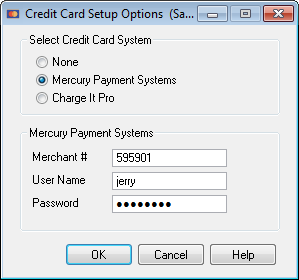
Select Mercury Payment Systems. The three entry fields in the box will now be enabled. Enter the Merchant Number, User Name and Password received from Mercury Payment Systems.
At this point, the setup has been completed for the Mercury Payment Systems interface.
Processing Credit Cards
The best example of processing credit cards from within the accounting program is found in Cash Sales. Select Cash Register from the Cash Sales menu. Following the instructions outlined in the Cash Register help topic, enter line items for a cash sale. When the line items have been entered, click the Total button. The following window will come into view:

At this point, if a credit card swiper has been attached to the computer, the credit card can be swiped. The system will retrieve the information from the card and automatically press the Credit Card button. Optionally, press the Credit Card button or F5 and the following window will come into view:

If the card was already swiped, the card information will show in this screen; otherwise, the card can be swiped at this point or the card number entered by hand in the fields provided. When the OK button is pressed, the system will take all the sale information and credit card information, along with the amount shown on this screen, and send it to Mercury Payment Systems via the DSI Client driver. A message like the following will be displayed indicating whether or not the credit card sale was approved:

At this point, the transaction has been completed. Clicking OK will save the sale for later posting to the accounting system.
Working With Gift Cards
Provisions have been made for Credit Card and Gift Card processing. The above instructions apply to both payment by credit card and payment by gift card. Gift cards can also be issued and reloaded and balances checked using the Cash Sales module.
Select Cash Register from the Cash Sales menu. Now select the desired cash register and click Select and Proceed. When the cash register screen comes into view, click on the Gift Card Menu tab at the bottom of the window. The following will be displayed:

Issuing or Reloading a Gift Card
If the Issue or Reload button is pressed, the following window will come into view:

Swipe the gift card and the gift card number will appear in the entry field. Enter the amount to be loaded onto the gift card and click the OK button. The program will interface with Mercury Payment Systems via the DSI Client and load the gift card with the specified amount of money. The system will insert a line item into the pending cash register sale for the purchase of a gift card in the amount issued. If the line item is deleted or the cash register sale is cancelled, the program will automatically void the issue or reload of the gift card.
Reading the Balance of a Gift Card
If the Balance button is pressed, the following window will come into view:
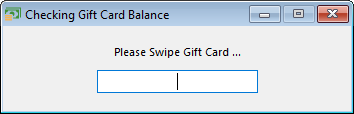
Swipe the gift card and the program will interface with Mercury Payment Systems via the DSI Client and display the current balance of the gift card.