
Data Export
The Data Export feature allows reports to be formatted in any way desired.
•Special reports may be printed on company letterhead for presentations.
•Specific lines of data may be printed in bold for emphasis.
•Certain confidential lines of data may be replaced with xxxx xxxx xxx, to keep them confidential.
•Certain lines of data, such as subtotals or grand totals may be the only data kept, with all other lines being deleted.
The function of this Export capacity is to allow virtually unlimited flexibility in report presentation, custom reporting, custom editing, etc.
The T button is located along the tool bar next to the printer icon on all Report Preview screens. Clicking on this T button will create a "Text" file of this report. The file will be named after the module from where it is being printed (by default).
Click on the T button and the following screen will come into view.
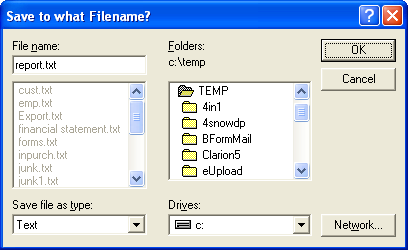
This screen allows the text file to be renamed and a folder selected in which the text file will be saved. After the desired file name and folder are selected, press the OK button. This text file may then be retrieved by a word processor and printed in whatever format is desired.
File Name
Enter the name of the file. Warning: if the name of the text file is left unchanged (i.e. JobAP.Txt, JobAR.Txt ,JobJC.Txt, etc.), this file will overwrite the previous files of the same name. It is suggested that the file name include a date, such as AP0816, AP1201, etc.
Folders
Select the name of the folder in which the text file will be saved. It is recommended to have a separate folder for Text reports, keeping it apart from data and program files. For example: this folder may be named "Accounting Reports".
Save file as type
The default type is text. This will allow the file to be retrieved by a word processor and printed in whatever format is desired.
Drives
This is the drive where the file is to be stored.